How to Tell If an Image or Video Is AI-Generated
Learn how to tell if an image or video is AI-generated: check SynthID and Content Credentials, spot visual clues, verify sources and avoid sharing fakes online.
A video of a politician saying something outrageous. A photo of a flooded street that looks like your area. A celebrity endorsing an investment scheme. A voice note from a "bank official". It's shared in your family WhatsApp group, someone says "Is this true?", and nobody knows.
AI can now create images, videos and voices that look and sound real. That's useful for creativity, but it also makes it easier to spread false news, run scams and damage reputations. And because fakes travel fastest in group chats and social feeds, everyone needs a few basic checking skills.
The good news is that tools for spotting AI content are improving, and a simple routine catches most fakes. This guide shows you how to tell if an image, video or voice is AI-generated: the watermark and verification tools available in 2026, the visual and audio clues to look for, how to check the source, and what to do before you share anything.
Why It's Getting Harder to Tell
A few years ago, AI images had obvious mistakes: extra fingers, melted faces, nonsense text. Today's tools rarely make those mistakes. AI video can include realistic movement and synchronised speech, and AI voices can copy a real person from a short recording.
That means there's no single trick that always works. Instead, you combine several signals: technical checks, visual clues, the source and context, and common sense. No single signal proves anything on its own, but together they usually tell you what you need to know.
Step 1: Check for AI Watermarks and Content Credentials
Many AI tools now mark what they create, in two main ways.
SynthID. Google's invisible watermark, embedded in content made with its AI tools. Google says over 20 billion pieces of content have been watermarked with SynthID since 2023. You can upload an image to the Gemini app and ask "Is this AI-generated?" or "Was this created with Google AI?", and Gemini checks for the watermark. In 2026 Google also announced checks in Chrome, Google Search and Circle to Search, and the Gemini app can check video and audio files too.
Content Credentials (C2PA). An open standard used by hundreds of companies, including Adobe, Microsoft and Meta, that attaches a record of where a file came from and how it was edited. Some platforms show a small "CR" icon you can tap to see this history, and free online viewers can read the credentials from a file.
The big limitation. These checks only work when the AI tool added a watermark or credentials, and the file hasn't been stripped of them. A screenshot, for example, can remove Content Credentials. So a positive result is strong evidence, but no result proves nothing. Never assume something is real just because no watermark was found.
Step 2: Look for Visual Clues
Even good AI images often have small giveaways. Zoom in and look carefully at:
Hands, teeth and ears. Better than before, but still sometimes oddly shaped, blurred or inconsistent.
Text and signs. Writing on shop signs, number plates, posters and clothing may be garbled, misspelt or inconsistent.
Backgrounds. Look for warped lines, objects that merge into each other, repeated faces in crowds or architecture that doesn't make sense.
Lighting and shadows. Shadows pointing in different directions, or light that doesn't match the scene.
Skin and texture. Unnaturally smooth or plastic-looking skin, or overly perfect hair.
Accessories. Earrings that don't match, glasses that blend into faces, jewellery that changes shape.
Local details. AI often gets local settings slightly wrong: unfamiliar police uniforms, wrong currency notes, signs in odd spellings of Nigerian place names or vehicles that don't fit the setting.
Step 3: Watch Videos Closely
AI video is improving fast, but these clues still help:
Mouth movements that don't quite match the words
Blinking that looks unnatural or too regular
Faces that flicker or shift slightly between frames, especially at the edges
Hands and objects that change shape as they move
Very short clips. Many AI videos are only a few seconds long, or stitched from short clips
Background people who move strangely or not at all
Audio that sounds too clean for the setting, or doesn't match the room
Pause the video and step through it frame by frame if you can. Glitches that are invisible at normal speed often show up when paused.
Step 4: Listen for Voice Clues
AI voices can be very convincing, especially in short voice notes. Listen for:
Flat or slightly odd emotion, especially in moments that should sound stressed or excited
Unnatural pauses or breathing
Mispronounced names or local words
Perfectly clean audio in a situation that should be noisy, such as a supposed emergency
Pressure and urgency, a common feature of scam voice notes
If a voice note asks for money or personal information, treat it as suspicious no matter how real it sounds. Our guide to AI voice cloning scams explains how these scams work and how to protect your family.
Step 5: Check the Source and Context
This is often the most reliable step, because fakes usually fall apart when you look at where they came from.
Who posted it first? Look for the original account. Is it a known, trusted news outlet or official account, or a random page with few followers and no history?
Is anyone reputable reporting it? If a major event really happened, established news organisations will usually be covering it. If only one viral post shows it, be cautious.
Do a reverse image search. Google Lens and other reverse image search tools can show where an image appeared before. Old photos are often recycled with new, false captions.
Check the date and place. Does the weather, clothing or landmark match the claimed time and location?
Ask what it wants from you. Content designed to make you angry, scared or excited enough to share immediately deserves extra suspicion. So does anything asking for money.
Step 6: Use AI Detectors Carefully
Many websites claim to detect AI images, videos and voices. Some are helpful, but independent testing has found wide differences in accuracy, and all of them can be wrong in both directions: calling real content fake, and fake content real.
Use detectors as one signal among many, never as final proof. If a detector says something is real but the source is suspicious and the visual clues are odd, trust your overall judgement.
You can also ask an AI assistant to help you analyse an image. Upload it to Gemini, ChatGPT or Claude and ask:
Analyse this image for signs that it may be AI-generated or edited. List specific visual
clues you notice, such as text, hands, lighting and background, and say how confident you
are. Also suggest how I could verify where it came from.
Treat the answer as a second opinion, not a verdict.
A Worked Example: A Viral Photo in a Family Group
A photo appears in a family WhatsApp group showing a major Lagos bridge collapsed, with the caption "Avoid Third Mainland Bridge, it has fallen!"
Source check: The message has been forwarded many times. No trusted news outlet or official government account mentions a collapse.
Reverse image search: Google Lens finds no earlier copies, which suggests it might be newly generated.
Visual clues: Zooming in, the cars near the edge are oddly shaped, and a sign in the background has garbled text.
Watermark check: Uploading it to the Gemini app returns a message that it was likely made with Google AI.
Result: A family member replies with what they found and a gentle note: "This looks AI-generated, and no news outlet is reporting it. Let's not forward it." The fake stops spreading in that group.
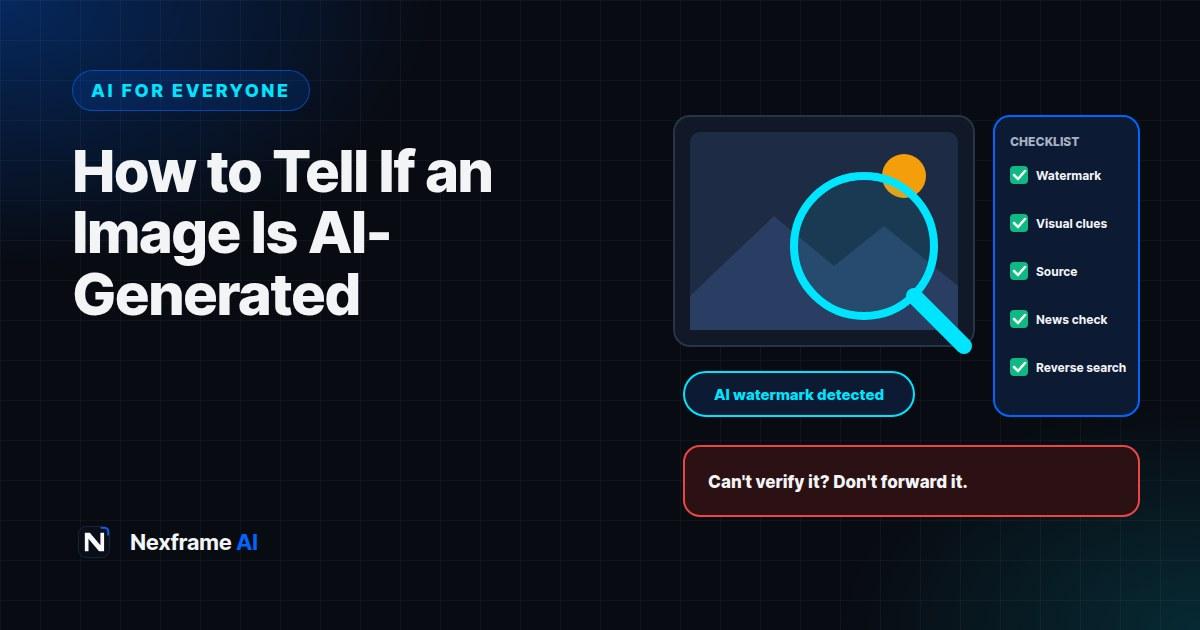
Before You Share: A Quick Checklist
Before forwarding any surprising image, video or voice note, ask:
Does it come from a trusted, original source?
Is reputable media reporting the same thing?
Did a reverse image search show it in another context?
Do any visual or audio details look wrong?
Did a watermark or Content Credentials check find anything?
Is it trying to make me panic, angry or send money?
If you can't confirm it, don't share it. A simple "I couldn't verify this" in a group chat can stop misinformation in its tracks.
Teaching Family and Friends
Older relatives and younger children are often the most exposed to AI fakes. A few habits help everyone:
Agree a family rule: don't forward shocking news until someone has checked it.
Show them how to use Google Lens or the Gemini app to check an image.
Explain that videos and voices can be faked, not just photos.
Agree a safe word for real emergencies, so fake voice notes can't fool anyone.
Share this guide with them, or walk them through one example together. Practising once makes the habit stick.
Common Mistakes to Avoid
Trusting a "no watermark" result. Many AI tools don't add watermarks, and screenshots strip credentials.
Relying on one detector. Detectors make mistakes. Combine signals.
Judging by quality alone. High-quality, realistic images can still be AI-generated.
Sharing "just in case". Forwarding unverified content spreads misinformation, even with good intentions.
Assuming you'd never be fooled. Everyone can be fooled. Checking is the habit that protects you.
Quick Checks You Can Do on Your Phone
Most fakes reach people on phones, through WhatsApp, Instagram, TikTok and X. You can check most things in under two minutes without a computer.
Google Lens. Long-press an image, or save it and open it in Google Lens, to search for earlier copies and similar images online. On Android, Circle to Search does the same from almost any app.
The Gemini app. Upload the image, video or audio file and ask "Is this AI-generated?" It checks for Google's SynthID watermark and gives you context.
Content Credentials. On platforms that support them, look for a small "CR" icon on the image, and tap it to see where the file came from.
WhatsApp's forwarded labels. Messages marked "Forwarded many times" have travelled through many chats. That doesn't make them fake, but it does mean the original source is far away, so check before passing it on.
Search the claim. Type the key claim into Google with words like "fact check" or the name of a trusted news outlet. If a dramatic event is real, someone credible will usually be reporting it.
Check the account. Tap the profile of whoever posted it. New accounts, few posts, no real-world identity and lots of sensational content are warning signs.
Be Extra Careful at Sensitive Times
Fake images and videos spike around elections, protests, disasters, religious tensions and major news events, when emotions are high and people want information fast. They also appear around financial events, such as fake videos of public figures promoting investment schemes.
At these times, slow down even more. Rely on established news organisations and official accounts, be wary of content designed to make you angry at a particular group, and never share unverified material that could put people in danger. Taking a minute to check is one of the most useful things anyone can do for their community.
Final Thoughts
Knowing how to tell if an image is AI-generated is now a basic life skill, like knowing how to spot a scam text. No single method is perfect, but checking for watermarks, looking for visual and audio clues, verifying the source and pausing before you share will protect you from most fakes.
Make it a habit: when something seems shocking, check before you share. Your family and friends will thank you.
For more ways to stay safe and get more from AI, see our guides to hidden ChatGPT features most people never use and using AI for health questions safely. If you create AI images or videos yourself, our guide to making faceless videos with AI explains how to label them properly.
Frequently Asked Questions
How can I tell if a photo is AI-generated?
Check for watermarks with the Gemini app or Content Credentials viewers, look for visual clues like garbled text and odd hands, run a reverse image search, and check whether trusted sources are reporting it. Combine all these signals.
Can Gemini detect AI images?
Yes, for images made with tools that use Google's SynthID watermark. Upload the image to the Gemini app and ask whether it's AI-generated. If no watermark is found, it doesn't prove the image is real.
What are Content Credentials?
Content Credentials, based on the C2PA standard, are a record attached to a file showing where it came from and how it was edited. Some platforms display a "CR" icon you can tap to see them.
Are AI image detectors accurate?
They vary widely and can be wrong both ways. Use them as one signal, not as proof.
How do I spot a deepfake video?
Watch for mouth movements that don't match speech, flickering faces, unnatural blinking, changing objects and suspicious sources. Pause and step through frames, and check whether trusted media is reporting it.
Can AI copy someone's voice?
Yes. AI can clone a voice from a short recording. Be very cautious about voice notes asking for money or personal information, and confirm through another channel.
What should I do if I've shared a fake?
Post a correction in the same group or feed, explaining that it appears to be fake. Corrections help stop the spread.
Is it illegal to make AI images?
Creating AI images isn't illegal in itself, but using them to deceive, defame, impersonate or defraud people can break laws and platform rules.
Comments (0)
Sign in to post a comment.
- Be the first to comment.