How to Use AI to Manage Your Email Inbox
Use AI to manage your email inbox: triage messages, summarise long threads, draft replies in your voice, set up filters and keep sensitive emails safe.
You open your inbox with good intentions. Forty-three unread emails. A long thread with nine replies you weren't copied on until now. A newsletter you don't remember subscribing to. Three messages that each need a careful answer. An hour later, you've read most of them, replied to two and started your actual work late again.
Email is one of the biggest hidden time drains at work. It's constant, it's unpredictable, and every message demands a small decision: read, reply, file, ignore or act.
AI can take a lot of that load. It can summarise long threads, sort messages by urgency, draft replies in your style and help you build systems that keep your inbox under control. This guide shows you how to use AI to manage your email inbox: the tools built into Gmail and Outlook, a simple triage routine, prompts for faster replies, filters that stop the clutter at the source and the privacy rules you need to follow.
What AI Can Do for Your Inbox
Summarise long emails and threads. Get the key points, decisions and questions in seconds instead of reading every reply.
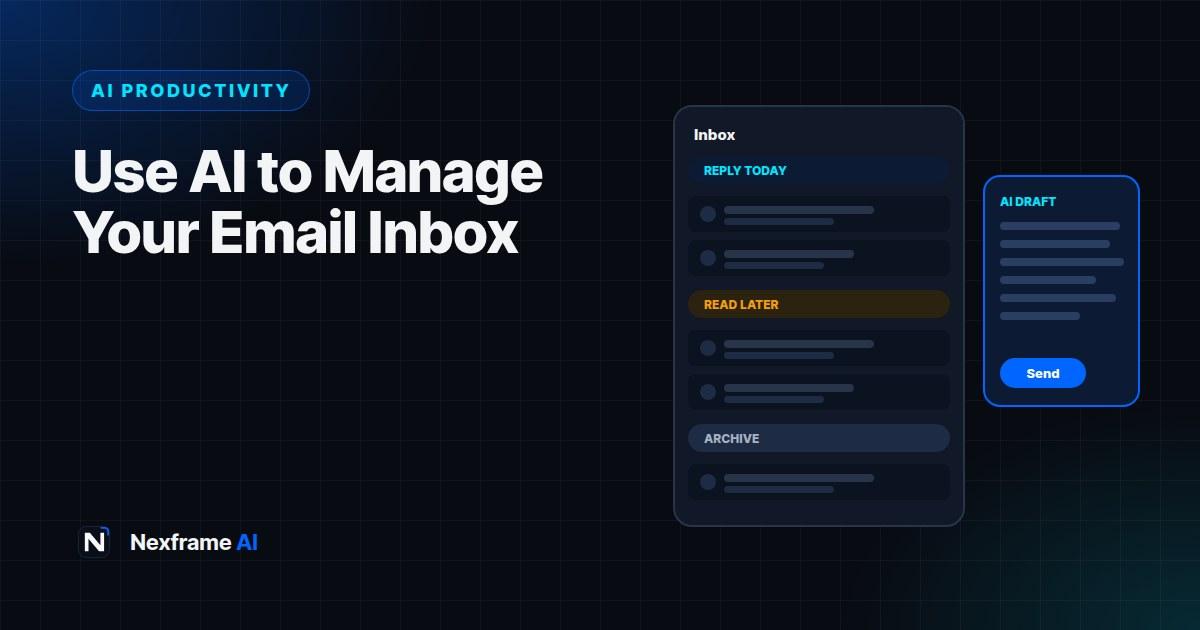
Sort and prioritise. Highlight which emails need a reply today, which can wait and which can be archived.
Draft replies. Turn a few words of direction, such as "accept, but ask to move to Thursday", into a polished email.
Improve your writing. Make a reply clearer, shorter, warmer or more professional.
Extract tasks and dates. Pull out deadlines, meetings and actions so they don't get buried.
Help build rules. Suggest filters and labels to sort future emails automatically.
What AI can't do is decide what matters to you. That judgement is still yours, and the best AI email setups make it faster, not automatic.
Tools You Can Use
Gemini in Gmail. On eligible Google plans, Gemini can summarise email threads, suggest replies and help you write emails from a short prompt, inside Gmail itself.
Copilot in Outlook. On eligible Microsoft 365 plans, Copilot can summarise threads, draft replies and coach your writing in Outlook.
General AI assistants. If your email app doesn't include AI, you can copy an email into ChatGPT, Claude or Gemini, ask for a summary or draft reply, and paste the result back. Remove sensitive details first (see below).
Built-in smart features. Even without paid AI, most email apps offer smart categories, priority inboxes and suggested replies. Switch them on and use them.
Start with whatever is built into the email service you already use. It's the most convenient and usually the most private option.
A Simple Triage Routine
The biggest productivity gain isn't AI on its own. It's a routine that stops you living in your inbox. Try this:
Check email at set times. For example, three times a day: mid-morning, after lunch and late afternoon. Turn off notifications in between so email doesn't interrupt deep work.
Process from top to bottom, once. For each email, make one decision:
Reply now if it takes under two minutes.
Schedule it if it needs more time. Add it to your task list or calendar.
Delegate it if someone else should handle it.
Archive it if no action is needed.
Delete or unsubscribe if it's clutter.
Use AI to speed up each decision. Summarise long threads before reading them in full, and draft replies for anything that needs more than a quick answer.
Aim to leave each session with nothing unprocessed, even if some items are now tasks for later. An inbox full of read but undecided emails is where stress comes from.
Prompts for Faster Email
Summarise a long thread
Summarise this email thread in 5 bullet points: the main issue, what's been decided,
what's still open, what's being asked of me specifically, and any deadlines.
Draft a reply from a few words
Reply to this email. My answer: [e.g. yes to the meeting, but I can only do Thursday
after 2pm, and I'll bring the budget figures]. Keep it under 100 words, friendly and
professional. Use British English.
Say no politely
Write a polite reply declining this request because [reason]. Suggest an alternative
if possible: [alternative]. Keep it warm and under 80 words.
Follow up on no reply
Write a short, friendly follow-up to my email below, sent 5 days ago with no reply.
Restate the one thing I need and by when. Under 60 words.
Handle a difficult email
This email from a client is frustrated about [issue]. Draft a calm, professional reply
that acknowledges their concern, explains what happened in one sentence, says what we'll
do next and by when, and avoids admitting fault for things outside our control.
Always read and edit drafts before sending. Check names, numbers, dates and promises especially.
Make AI Write Like You
Generic AI emails are easy to spot: too long, too formal and full of phrases like "I hope this email finds you well" and "Please do not hesitate to reach out". Teach the AI your style.
Give it examples. Paste two or three emails you've written that you're happy with, and ask it to match the tone, length and sign-off.
Set rules. For example: "Keep emails under 120 words, use short paragraphs, get to the point in the first line, sign off with 'Thanks, Ada'. Avoid 'I hope this finds you well' and 'Kindly'."
Save your instructions. Many assistants let you save custom instructions or preferences, so you don't have to repeat them. Our guide to ChatGPT features most users don't know covers how to set them up.
Edit the first and last lines yourself. They carry most of the tone.
Stop Clutter at the Source
AI helps you process email faster, but the best email is the one you never receive.
Unsubscribe ruthlessly. Spend 15 minutes unsubscribing from newsletters and promotions you don't read. Many email apps make this a one-click job.
Use filters and labels. Automatically label or archive receipts, notifications and newsletters so they don't land in your main inbox. AI can help write rules:
I use Gmail. I want emails from [senders or keywords] to skip the inbox and get the
label "Receipts", and newsletters to go to "Read later". Give me step-by-step
instructions to set up these filters.
Use a separate address for sign-ups. Keep shopping, newsletters and app sign-ups away from your main work email.
Agree team norms. Fewer "reply all" emails and clearer subject lines reduce email for everyone.
Keep Sensitive Email Safe
Email often contains sensitive information. Follow these rules when using AI:
Prefer AI built into your email service on your work account, which is usually covered by your organisation's agreements, over copying emails into other tools.
Remove personal and confidential details before pasting emails into a general AI assistant, such as names, phone numbers, account details, contracts and financial information.
Never paste passwords, one-time codes or bank details into any AI tool.
Follow your workplace's AI policy. If there isn't one, our guide to writing an AI policy for your small business is a good starting point.
Watch for AI-powered phishing. Scam emails now often have perfect grammar. Check sender addresses carefully and never click unexpected links asking you to log in. Our guide to spotting AI-powered scams explains the warning signs.
A Worked Example: A Busy Operations Manager
Folake manages operations for a logistics company and receives around 120 emails a day.
Before: She checks email constantly, gets interrupted every few minutes and spends evenings catching up.
New routine: She checks email three times a day and turns off notifications. She sets up filters so delivery notifications and system alerts skip the inbox and go into labelled folders she checks once a day.
AI help: She uses her email app's AI to summarise long threads before reading them, and drafts replies from short instructions. She saves a writing style with examples of her own emails, so drafts sound like her.
Tasks: Anything needing more than two minutes goes into her task manager with a due date, not left in her inbox.
Result: After two weeks, her email time drops noticeably, she starts her main work earlier, and she rarely works on email in the evening.
Measure Your Progress
Track a few simple things for a couple of weeks:
Time spent on email each day. Many phones and computers can show screen time by app.
Number of email sessions. Fewer, focused sessions are the goal.
Unprocessed emails at the end of the day. Aim for zero undecided emails, not necessarily zero emails.
Response time on important emails. It should stay fast even as total email time falls.
Adjust your routine based on what you see. For a complete system that ties email to your tasks and calendar, see our guide to planning your week with AI.
Common Mistakes to Avoid
Sending AI drafts without reading them. Wrong details or awkward tone can damage relationships.
Pasting sensitive emails into public tools. Remove confidential details or use your work account's built-in AI.
Letting AI decide priorities alone. It doesn't know your goals or relationships as well as you do.
Constant checking. AI can't fix the habit of reacting to every new email.
Over-long replies. AI tends to write too much. Ask for shorter replies and edit ruthlessly.
Never unsubscribing. Processing clutter faster still wastes time.
Email Templates Worth Saving
Many emails you send are variations of the same few messages. Save templates for them, with gaps for details, and use AI to fill and tailor them in seconds.
Meeting request.
Hi [Name], I'd like to discuss [topic] with you. Would you have 30 minutes on [day] or [day] between [times]? I'll send a short agenda beforehand. Thanks, [Your name]
Sending a quote or proposal.
Hi [Name], thanks for your time on [day]. As discussed, I've attached our proposal for [project]. In short: [one-line summary], at [price], with delivery by [date]. Happy to answer any questions or adjust the scope. Thanks, [Your name]
Status update.
Hi [Name], a quick update on [project]: done: [items]; next: [items]; needs your input: [question, by date]. Thanks, [Your name]
Introduction.
Hi [Name A] and [Name B], I'm connecting you because [reason]. [Name A] is [one line]; [Name B] is [one line]. I'll let you take it from here. Best, [Your name]
Out of office.
Thanks for your email. I'm away until [date] with limited access to email. For urgent matters, please contact [Name] at [email]. I'll reply when I'm back.
Store your templates in your email app's template feature, a notes app or your second brain. Our guide to building an AI second brain shows how to keep them organised. When you use one, ask AI to tailor it:
Using this template, write an email to [name] about [situation]. Keep the same structure
and length, adjust the tone to [formal/friendly], and fill in these details: [details].
Templates plus AI tailoring is one of the fastest ways to cut email time without sounding robotic.
Final Thoughts
Using AI to manage your email inbox can save hours every week, but the biggest gains come from combining AI with good habits: set times for email, one decision per message, filters for clutter and AI for summaries and drafts.
Start this week. Turn off notifications, set three email times, try the summary and reply prompts, and unsubscribe from five newsletters. Then build from there.
For meetings that create less follow-up email, see our guide to AI meeting notes. For more systems, explore our AI Productivity guides and the Productivity Workflows.
Frequently Asked Questions
Can AI manage my email for me?
AI can summarise, sort and draft, but you should still decide priorities and approve replies. The best results come from combining AI with a simple triage routine.
Does Gmail have AI?
Yes. On eligible Google plans, Gemini in Gmail can summarise threads, suggest replies and help write emails. Gmail also has free smart features like categories and suggested replies.
Is it safe to paste emails into ChatGPT?
Only if you remove personal and confidential details first and follow your workplace's AI policy. Built-in AI in your work email account is usually a safer choice.
How do I make AI emails sound like me?
Give the AI examples of your own emails, set style rules such as length and sign-off, save these as custom instructions and edit the first and last lines yourself.
How often should I check email?
For most people, two to four set times a day works well. Turn off notifications in between to protect focus time.
What is inbox zero?
Inbox zero means processing every email with a clear decision, such as reply, schedule, delegate, archive or delete, so nothing sits undecided. It doesn't mean you never receive email.
Can AI help me unsubscribe from emails?
AI can't unsubscribe for you in most email apps, but it can help you write filters, and many email apps offer one-click unsubscribe features.
Can AI spot phishing emails?
It can help as a second opinion, but don't rely on it. Check sender addresses and links carefully, and never enter passwords from an unexpected email.
Comments (0)
Sign in to post a comment.
- Be the first to comment.