AI Meeting Notes: Record, Summarise and Act Faster
Use AI meeting notes to capture every call: Gemini in Meet, Zoom and Teams tools, consent, checking summaries and turning notes into action items that stick.
You leave a one-hour meeting feeling productive. Two days later, nobody can agree on what was decided. Someone thought they were writing the proposal; someone else thought they were. The deadline everyone remembers is different for each person. And the one person who took notes wrote "follow up with client" and nothing else.
Meetings are where a lot of work gets decided, and where a lot of it gets lost. Taking good notes while also listening, thinking and contributing is genuinely hard, which is why most meeting notes are either missing or useless.
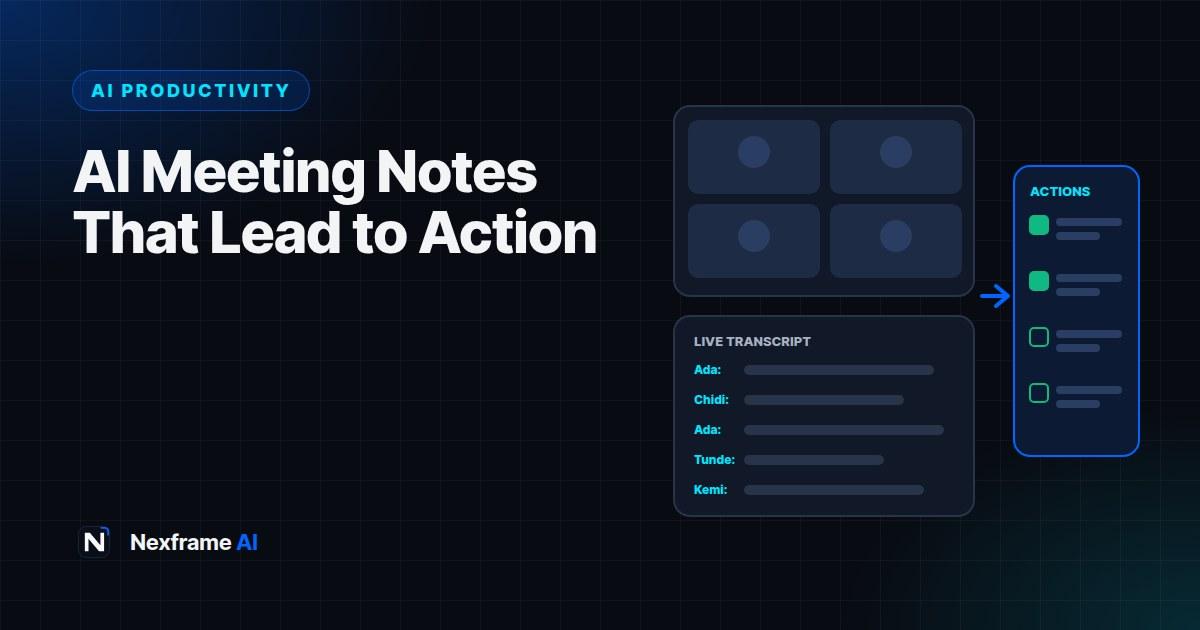
AI meeting notes change that. Tools built into Google Meet, Zoom and Microsoft Teams, along with standalone note-takers, can now transcribe a conversation, summarise it and list action items automatically. This guide shows you how AI meeting notes work, which tools to use, how to handle consent and privacy, how to check summaries for accuracy and, most importantly, how to turn notes into action so meetings actually lead somewhere.
How AI Meeting Notes Work
Most AI note-takers follow the same steps:
Listen to the meeting audio, either inside the video call or through your phone or laptop for in-person meetings.
Transcribe the conversation into text, often identifying who said what.
Summarise the discussion into key points and decisions.
Extract action items, such as tasks, owners and deadlines.
Share the notes, usually as a document or email after the meeting.
The result is a searchable record you didn't have to type, and the freedom to actually take part in the meeting instead of scribbling.
The Main Options in 2026
Google Meet's "Take notes for me". Gemini transcribes the call, creates a summary with action items, saves it to a Google Doc in your Drive and emails a recap afterwards. It's available on eligible Google Workspace business plans, and in June 2026 Google extended it to Google AI Pro and Ultra subscribers for meetings they host. Google has also extended it to in-person meetings, started from the Meet app, and says it can capture conversations hosted on Zoom or Teams. All participants are notified when it's switched on.
Zoom AI Companion. Zoom's built-in assistant can generate meeting summaries and next steps for hosts on eligible plans. An admin may need to switch it on in settings.
Microsoft Teams. Teams offers AI-generated recaps, notes and follow-ups through Teams Premium or Microsoft 365 Copilot licences, shown in the meeting's Recap tab afterwards.
Standalone note-takers. Tools such as Otter and Fireflies work across several platforms and often add features like searching across all your past meetings. Some join as a visible bot; others record from your device.
Do-it-yourself. If you don't have a built-in tool, you can record a meeting (with permission), get a transcript, and paste it into ChatGPT, Claude or Gemini to summarise. It takes a few more steps but works with free tools.
The best choice is usually the one built into the platform your team already uses. Only add a standalone tool if you need features the built-in one lacks, such as working across several platforms or searching every meeting at once.
Consent and Privacy Come First
Recording and transcribing people's words is sensitive. Get this right before anything else.
Tell people, every time. Announce at the start that AI notes are being taken, even if the tool shows a notice. Something simple works: "I'm using AI to take notes today so I can focus. Is everyone okay with that?"
Respect a no. If someone objects, switch it off or take manual notes for that part.
Know the rules where you are. Laws on recording conversations vary by country and region, and some require everyone's consent. Workplaces may also have their own policies. If in doubt, ask.
Be careful with sensitive meetings. HR conversations, disciplinary meetings, medical discussions, legal advice and confidential negotiations may not be appropriate for AI note-taking at all.
Check where notes are stored and who can see them. Google Meet notes, for example, go to the organiser's Drive and can be shared. Make sure access is limited to the right people.
If your business uses AI tools, include meeting notes in your AI policy. Our guide to writing an AI policy for your small business includes a template you can adapt.
How to Get Better AI Notes
AI notes are only as good as the meeting they capture. A few habits make a big difference.
Use a clear agenda. Share it at the start, or put it in the meeting invite. AI summaries are far more organised when the conversation follows a structure.
Say decisions out loud. "So we've decided to launch on the 15th" is easy for AI to capture. A silent nod isn't.
Name owners and deadlines explicitly. "Chidi will send the revised quote by Friday" becomes a clean action item. "Someone should look at that" does not.
Reduce crosstalk. When several people talk at once, transcripts get messy and speakers get mixed up.
Get good audio. Use headphones with a microphone where possible, mute when not speaking, and avoid noisy rooms. For in-person meetings, place the phone or laptop centrally.
Summarise at the end. Spend the last two minutes recapping decisions and actions out loud. It helps everyone, and it gives the AI a clear final summary to work from.
Always Check the Summary
AI summaries can be wrong or incomplete. Google itself warns that AI-generated meeting summaries can be inaccurate. Common problems include:
Mixing up who said what
Missing decisions that weren't stated clearly
Misunderstanding names, technical terms or local words
Turning a suggestion into a decision, or the other way round
Missing nuance, such as "only if the budget allows"
Before sharing notes, spend two or three minutes checking the summary and action items against your memory and, if needed, the transcript. Correct names, owners and dates especially. A wrong deadline in official notes causes more trouble than no notes at all.
Turn Notes Into Action
Notes are only useful if they lead to action. This is where most teams fall short, and where AI can help most.
Step 1: Clean up the action items
After the meeting, paste the AI summary or transcript into an AI assistant and ask:
From these meeting notes, list every action item as: task, owner, deadline. Mark any
action without a clear owner or deadline as "UNCLEAR". Then list decisions made and open
questions that still need answers. Don't add anything that wasn't discussed.
Fix anything marked "UNCLEAR" by asking the people involved.
Step 2: Send a short follow-up
Send a follow-up within a few hours, while the meeting is fresh. Keep it short: decisions, action items with owners and deadlines, and open questions. AI can draft it:
Write a short follow-up email from these meeting notes. Include: a one-line thank you,
decisions made, action items with owners and deadlines as a list, and open questions.
Keep it under 200 words and friendly.
Step 3: Put tasks where work actually happens
Move action items into your task manager, project board or calendar, not just the notes document. A task that only lives in meeting notes is easy to forget.
Step 4: Start the next meeting with the last one's actions
Open each recurring meeting by reviewing the previous actions. It builds accountability and keeps meetings connected rather than repeating the same discussions.
A Worked Example: A Weekly Team Meeting
A five-person marketing team at a Lagos fintech holds a 45-minute weekly meeting on Google Meet.
Before AI notes: One person takes notes in a shared doc while trying to contribute. Notes are patchy, and actions often go missing.
With AI notes: The team lead switches on "Take notes for me" at the start and says so out loud. The meeting follows a three-item agenda, and the lead states each decision clearly and names owners.
After the meeting: Gemini saves notes to a Google Doc. The lead spends three minutes checking it, fixing one misheard product name and one owner who'd been mixed up. She pastes the corrected notes into an AI assistant to produce a short follow-up message, then adds the five action items to the team's task board.
Next week: The meeting opens with a two-minute review of last week's actions. Four of five are done; the fifth is discussed and rescheduled.
Result: Meetings feel shorter, nobody is stuck taking notes, and far fewer tasks slip through the cracks.
Get More From Your Meeting Notes
Once you have a library of AI notes, you can use it for more than follow-ups.
Search past meetings. Some tools let you ask questions across meetings, such as "What did we decide about pricing last month?"
Spot patterns. Ask an AI assistant to review a month of notes and list recurring problems, unresolved questions or actions that keep slipping.
Brief people who missed it. Share a short summary instead of asking someone to watch a recording.
Build a knowledge base. Store important meeting notes alongside your other documents so they're easy to find later. Our guide to building an AI second brain shows how. You can also add notes to Gemini Notebook and ask questions across them.
Common Mistakes to Avoid
Recording without telling people. It damages trust and may break the law.
Sharing unchecked summaries. Errors spread quickly once notes go out.
Using AI notes in sensitive meetings. Some conversations shouldn't be recorded.
Leaving actions in the notes. Move them into your task system.
No agenda. Unstructured meetings produce unstructured notes.
Assuming AI caught everything. Important nuances and quiet decisions are often missed.
Notes for Different Types of Meetings
Different meetings need different notes. Ask your AI tool, or an assistant you paste the transcript into, for the format that fits.
Team stand-ups and weekly meetings. Capture progress, blockers and next steps for each person. Prompt: "For each person, list what they finished, what they're working on next and any blockers. Then list decisions and action items with owners and deadlines."
Client and sales calls. Capture the client's needs, concerns, budget, timelines and agreed next steps. Prompt: "Summarise the client's goals, problems, budget and timeline in their words where possible, list any objections or concerns, and list agreed next steps with dates." Always confirm next steps with the client by email afterwards.
One-to-one meetings. Focus on agreements, support needed and follow-ups. Be especially careful about consent and privacy, since these meetings are often personal.
Project kick-offs. Capture goals, scope, roles, deadlines, risks and open questions. Prompt: "Create a one-page project brief from these notes: goal, scope, out of scope, roles, key dates, risks and open questions."
Interviews and research calls. Capture key quotes, themes and insights. Get explicit consent, and store recordings securely. For research projects, you can add transcripts to Gemini Notebook and ask questions across many interviews.
Lectures and training sessions. Capture key concepts, examples and anything the trainer emphasised. Ask permission before recording a lecture, then turn the notes into flashcards or a quiz for revision.
Save your favourite prompts as templates, so producing great notes takes seconds after every meeting. The Business Workflows include follow-up routines for client meetings, and the Study & Learning Workflows cover lecture notes.
One final tip: for meetings in mixed languages, such as English with Pidgin or Yoruba, transcription may struggle. Ask speakers to summarise key points in English at the end, so the AI captures the decisions clearly.
Final Thoughts
AI meeting notes free you to focus on the conversation instead of typing, and give your team a reliable record of what was decided. The tools are now built into the platforms most people already use.
The real value comes from what you do afterwards: check the summary, send a short follow-up, move actions into your task system and review them next time. Do that consistently, and meetings start producing results instead of repeating themselves.
For more ways to reclaim your time, see our guides on using AI to manage your email inbox and planning your week with AI, and browse the Productivity Workflows.
Frequently Asked Questions
What is the best AI for meeting notes?
Usually the one built into your meeting platform: Gemini in Google Meet, Zoom AI Companion or Microsoft Teams recaps. Standalone tools like Otter and Fireflies are useful if you need to work across several platforms.
Is Google Meet's "Take notes for me" free?
It's included in eligible Google Workspace business plans and, since June 2026, Google AI Pro and Ultra subscriptions for meetings you host. It isn't available on every free account.
Do I need permission to use AI meeting notes?
You should always tell participants and get their agreement. Recording laws vary by country and region, and some require everyone's consent. Check your local rules and workplace policies.
Can AI take notes in in-person meetings?
Yes. Google has extended "Take notes for me" to in-person meetings through the Meet app, and other tools can record from a phone or laptop. Tell everyone in the room first.
How accurate are AI meeting notes?
Generally useful, but not perfect. They can misattribute speakers, miss decisions or misunderstand names and terms. Always check before sharing.
Can AI meeting notes work with Nigerian accents and local terms?
Transcription has improved a lot, but names, local words and strong accents can still cause errors. Speak clearly, use good microphones and correct mistakes in the summary.
What should I do with AI meeting notes afterwards?
Check them, send a short follow-up with decisions and action items, move tasks into your task system and review them at the start of the next meeting.
Should I record every meeting?
No. Avoid recording sensitive meetings such as HR, legal, medical or confidential discussions, and only record when participants agree.
Comments (0)
Sign in to post a comment.
- Be the first to comment.