How to Build an AI Second Brain for Your Notes
Build an AI second brain for your notes and documents: capture ideas, organise with simple folders, search with AI and turn what you save into useful work.
You know you read something useful about this last month. Maybe it was in an article you saved, a PDF someone sent, a voice note you recorded on the bus or a note somewhere in your phone. You search, scroll and give up. Then you start from scratch.
Most of us collect far more information than we can use: notes, screenshots, links, documents, meeting notes and ideas scattered across apps. The problem isn't a lack of information. It's that we can't find it when we need it, and we rarely turn it into anything.
A "second brain" is a simple system for capturing, organising and using what you know, outside your head. AI makes it far more powerful, because you can now ask questions across your notes, summarise long documents and turn saved material into first drafts. This guide shows you how to build an AI second brain: the simple structure, the tools, a capture habit, how to search with AI, how to turn notes into output and how to keep it from becoming another messy app.
What a Second Brain Is (and Isn't)
A second brain is your personal store of useful information, organised so you can find and use it later. It typically holds:
Notes from reading, courses and research
Meeting notes and decisions
Ideas for projects, content or business
Important documents and reference material
Templates, checklists and prompts you reuse
It isn't a place to save everything you see online. The goal isn't collecting; it's using. A small, well-organised second brain you actually use beats a huge archive you never open.
AI adds three superpowers: asking questions across everything you've saved, summarising long material quickly and turning notes into drafts, plans and answers.
Choose Your Tools
You need two things: somewhere to store notes and documents, and an AI that can work with them. Keep it simple and pick tools you'll actually use.
Note apps with built-in AI. Apps such as Notion, which includes AI features on certain plans, let you write, store and ask AI questions about your notes in one place.
Google Drive with Gemini Notebook. Store documents in Drive, then add the ones you need to Gemini Notebook to ask questions across them, with citations to the exact passage. Our guide to studying with Gemini Notebook shows how it works; the same approach works for work projects.
AI assistants with projects or memory. ChatGPT, Claude and Gemini let you group files and chats into projects, so the AI remembers context for a specific area. Our guide to ChatGPT features most users don't know covers projects and memory.
A simple notes app. Even Apple Notes, Google Keep or Samsung Notes can work as a capture inbox if you move important notes into your main system regularly.
Don't try them all. Pick one place for notes and one AI approach, and stick with them for a month.
Use a Simple Four-Folder Structure
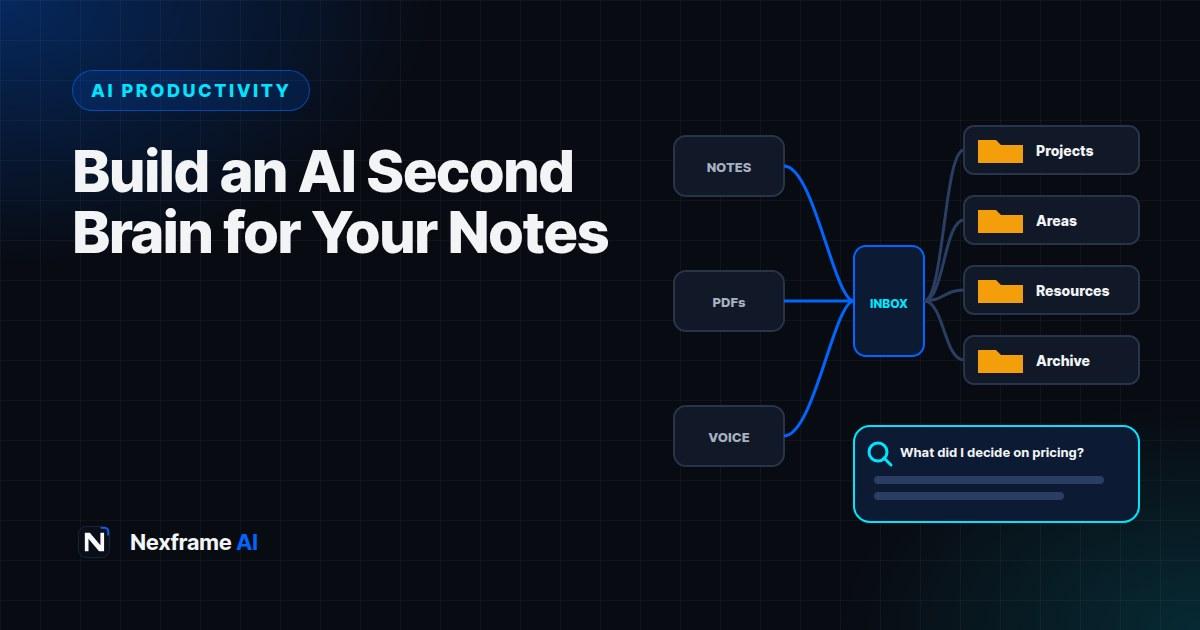
Complicated systems collapse. A simple structure that works for most people uses four top-level folders, inspired by a popular method called PARA:
1. Projects. Things you're actively working on with a goal and an end date, such as "Website redesign", "Final year project" or "Lagos market research".
2. Areas. Ongoing responsibilities with no end date, such as "Finances", "Health", "Team management" or "Content".
3. Resources. Topics you're interested in or may need later, such as "AI tools", "Marketing ideas" or "Career".
4. Archive. Finished projects and anything no longer active.
When you save something, ask one question: "Where will I need this next?" Put it there. When a project ends, move it to Archive. That's the whole system.
Add one more special place: an Inbox for quick capture. Everything goes there first, and you sort it weekly.
Capture Quickly, Every Day
A second brain only works if capturing is effortless. Make it fast:
Voice notes. Record ideas on the go, then use AI to transcribe and summarise them.
Quick text notes. Keep a single "Inbox" note or folder on your phone for anything you want to remember.
Save with context. When you save a link or document, add one line: why you saved it and what you might use it for.
Meeting notes. Save AI meeting summaries into the relevant project. Our guide to AI meeting notes explains how to capture them.
Screenshots and photos. Many AI assistants can read text in images. Save useful screenshots, then ask AI to pull out the key points.
Capture should take seconds. Organising happens later.
Process Your Inbox Weekly With AI
Once a week, empty your inbox into the four folders. AI makes this fast:
Here are this week's captured notes: [paste]. For each one, write a clear title, a
one-sentence summary, and suggest whether it belongs in Projects, Areas, Resources or
Archive. My current projects are: [list]. My areas are: [list]. Flag anything that
looks like a task with a deadline.
Review the suggestions, move notes into place and add any tasks to your task list. Delete anything that's no longer useful. This weekly session pairs well with your weekly plan; our guide to planning your week with AI shows how to combine them.
Search and Ask Questions With AI
This is where an AI second brain really pays off. Instead of searching for keywords, you can ask questions in plain language.
In a tool that can read your notes, such as Gemini Notebook or a note app with AI, try:
Using only my notes, what did I learn about pricing strategies for small online shops?
Summarise the key points and tell me which notes they came from.
What decisions did we make about the website redesign across all my meeting notes,
and what's still unresolved?Find every idea I've saved for TikTok content about careers, and group them into themes.Ask for sources or citations wherever the tool supports it, so you can check the answer against your original notes.
Turn Notes Into Output
A second brain is only valuable if it helps you create, decide or act. Use AI to turn saved material into useful work:
First drafts. "Using my notes in this project, draft a one-page proposal for [client]."
Content. "Using my saved ideas on CV tips, outline five short videos." Our guide to creating 30 days of content in one weekend shows how to turn ideas into a content calendar.
Study materials. "Turn my notes from this course into flashcards and a quiz."
Decisions. "Based on my research notes, list the pros and cons of each supplier."
Reusable templates. Save your best prompts, checklists and templates in Resources, so you never start from scratch again.
The more you use your second brain for output, the more you'll trust it, and the more you'll add to it.
A Worked Example: A Small Business Owner
Ibrahim runs a small events company. His ideas, supplier details, client notes and inspiration were spread across WhatsApp, emails, screenshots and three different notes apps.
Setup: He creates four folders in Notion: Projects (each upcoming event), Areas (suppliers, marketing, finances), Resources (decoration ideas, pricing research, AI prompts) and Archive (past events). He adds an Inbox for quick capture.
Capture: He records voice notes after site visits and client calls, and saves useful supplier messages and screenshots to the Inbox.
Weekly processing: Every Friday, he pastes his Inbox into AI, which suggests titles, summaries and folders. He sorts everything in 15 minutes and adds tasks to his week.
Using it: When a new client asks for a wedding quote, he asks AI to pull pricing and supplier notes from past wedding projects and draft a proposal. It takes 20 minutes instead of an afternoon.
Result: He spends less time searching, quotes faster and reuses what worked in previous events.
Keep It Private and Secure
Your second brain may contain sensitive information. Protect it:
Use strong passwords and two-factor authentication on your notes and AI accounts.
Check privacy settings in your AI tools, including whether your data is used to train models.
Keep the most sensitive information out, such as passwords, bank details, ID numbers and confidential client data, unless you're using a secure, approved tool for it.
Follow workplace rules if you store work information. Our guide to writing an AI policy for your small business covers the basics.
Common Mistakes to Avoid
Saving everything. Only save what you're likely to use. Clutter makes AI answers worse too.
Overcomplicated folders. Four folders and an inbox are enough for most people.
Never processing the inbox. An unprocessed inbox is just another mess.
Switching tools constantly. Pick tools and give them a month before changing.
Collecting without creating. Use your notes for drafts, decisions and content regularly.
Trusting AI answers blindly. Check summaries against your original notes, especially for important decisions.
A Starter Setup You Can Copy
If you're not sure what goes where, here's a starter structure for a working professional. Adapt the names to your life.
Inbox: Quick notes, voice memos, screenshots and links waiting to be sorted.
Projects: One folder per active project, such as "Q4 marketing campaign", "House move" or "Job applications". Each holds notes, meeting summaries, drafts and key documents for that project.
Areas: Ongoing responsibilities, such as "Career", "Finances", "Health", "Team" and "Learning". The Career area might hold your CV versions, performance reviews and a running list of achievements, which is useful for interviews and promotions.
Resources: Topics you return to, such as "AI prompts", "Templates", "Industry research" and "Book notes".
Archive: Finished projects and old material you might need later.
Prompts worth saving in Resources
Keep a note of your best prompts so you never rewrite them:
Weekly inbox processing: the prompt from earlier in this guide.
Meeting follow-up: "Turn these notes into decisions, actions with owners and deadlines, and open questions."
Document summary: "Summarise this in 5 bullet points, then list anything I need to act on."
Draft from notes: "Using only these notes, draft a one-page [proposal/report/plan] for [audience]."
Learning review: "From my notes on this topic, create 10 quiz questions to test my understanding."
A running list of your achievements in the Career area is especially valuable. When it's time to update your CV, paste it into Nexframe Resume and turn it into strong, specific bullet points. The Resume Workflows show the full process.
Final Thoughts
An AI second brain turns scattered notes, documents and ideas into a system you can actually use. Capture quickly, organise simply with four folders and an inbox, process weekly with AI's help, and ask questions across your notes when you need answers.
Start small: set up your folders today, capture for a week, and run your first AI-assisted inbox review on Friday. Within a month, you'll be finding things in seconds and creating faster than ever.
If you're juggling notes alongside a busy inbox, our guide to using AI to manage your email inbox helps there too. For research-heavy work, the Research Workflows pair well with this system.
Frequently Asked Questions
What is an AI second brain?
It's a personal system for capturing, organising and using your notes, documents and ideas, combined with AI that can summarise, search and answer questions across them.
What's the best app for a second brain?
The one you'll use consistently. Note apps with built-in AI, such as Notion, and Google Drive with Gemini Notebook are popular options. Keep it simple: one place for notes and one AI approach.
What is the PARA method?
PARA organises information into four groups: Projects, Areas, Resources and Archive. It's simple, flexible and works well with AI.
How often should I organise my notes?
Capture daily, and process your inbox once a week. A 15-minute weekly session keeps the system clean.
Can AI search my notes?
Yes, in tools that can access your notes, such as note apps with AI features, AI assistants with projects, and Gemini Notebook. Ask questions in plain language and check the sources.
Is it safe to store notes in AI tools?
It can be, with strong security and the right privacy settings. Keep highly sensitive information, such as passwords and bank details, out of general tools.
Can students use a second brain?
Yes. It's ideal for organising course notes, readings and research, especially combined with Gemini Notebook for revision.
How long does it take to set up?
About an hour to set up folders and tools, then a few minutes a day to capture and 15 minutes a week to organise.
Comments (0)
Sign in to post a comment.
- Be the first to comment.